

Updated October 5, 2026
TL;DR: Featured Actions turn passes into interactive shortcuts.
- Featured Actions are tappable buttons on the pass face (iOS 27+)
- 14 action types available — each pass type supports a different subset
- Maximum 2 actions per pass
- Actions use URLs, phone numbers, or Apple Maps Place IDs
- Additional Info displays supplementary content below the pass
- Apple controls the icon and label — you only choose the type and target
Overview
iOS 27 introduces Featured Actions — tappable action buttons displayed prominently on the front of a pass. These transform static credentials into interactive shortcuts, letting users call a venue, navigate to a location, book services, or access rewards directly from their pass.
This guide covers what Featured Actions are, which actions work with which pass types, the input formats required, and how to design passes that use them effectively.
What are Featured Actions
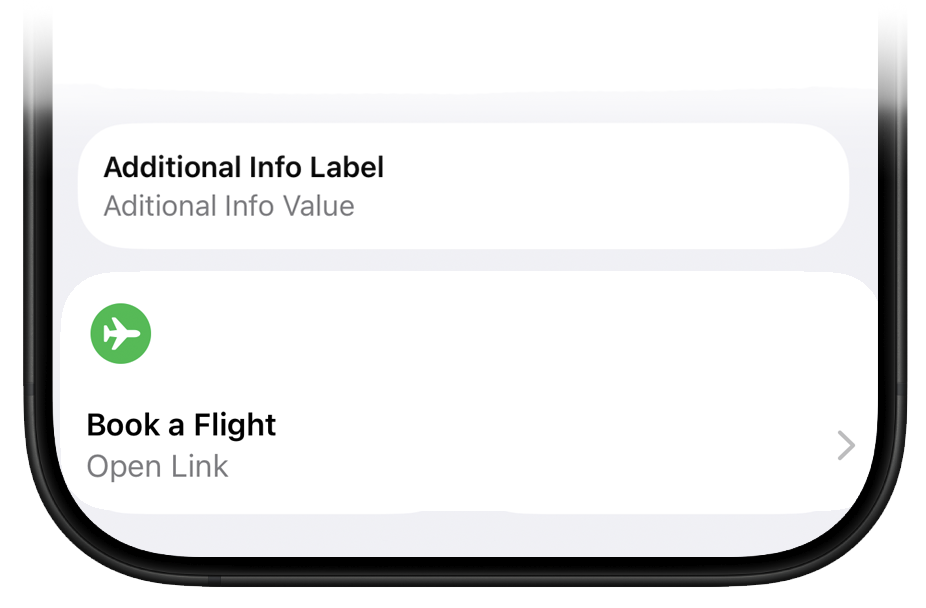
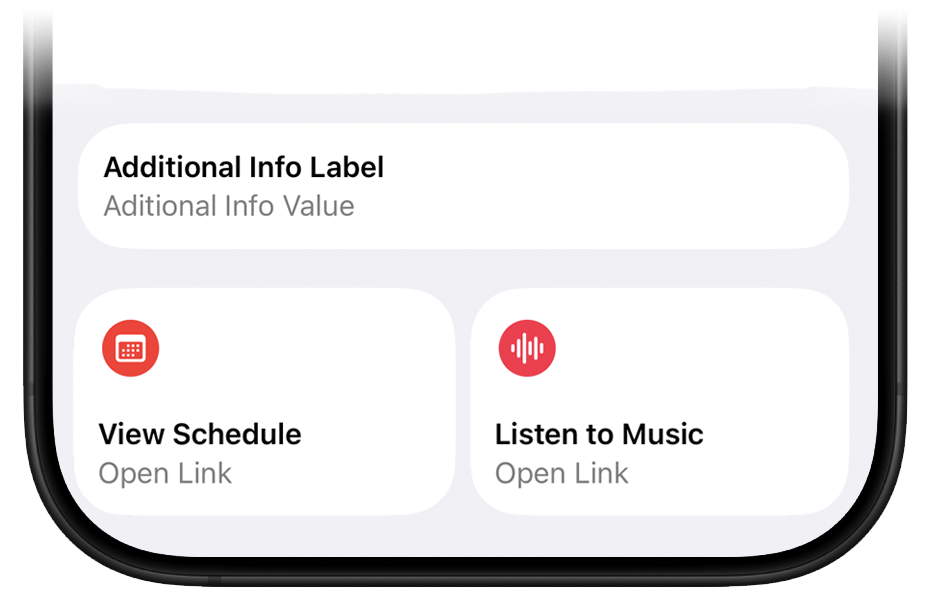
Featured Actions appear as circular icon buttons on the pass face, below the main content area. Each action has:
- A system-provided icon — Apple supplies the glyph based on the action type
- A system-provided label — localized automatically (e.g., "Call", "Go to Location")
- A target URL or identifier — the destination when the user taps
Designers don't control the icon or label — only the action type and its target. This ensures visual consistency across all passes in Wallet.
Layout behavior: A single action displays as a wide tile spanning the full width. Two actions appear side-by-side as equal-width tiles.
Available Action Types
Apple provides 14 Featured Action types. Each serves a specific purpose:
| Action Type | Label | Purpose |
|---|---|---|
call | Call | Initiate a phone call to a business or venue |
place | Go to Location | Open directions in Apple Maps |
shop | Shop Online or In-App | Link to online store or in-app purchase flow |
order | Order Delivery or Pickup | Link to food ordering or pickup scheduling |
addToBalance | Add to Balance | Reload funds or add credit to an account |
viewOffersRewards | View Offers and Rewards | Display available promotions or earned rewards |
membershipBenefits | View Membership Benefits | Show membership perks and tier information |
bookAppointment | Book an Appointment | Schedule a service appointment |
bookCar | Book a Car | Reserve a rental car |
bookFlight | Book a Flight | Link to flight booking |
bookStay | Book a Stay | Reserve hotel or accommodation |
viewSchedule | View Schedule | Display event schedule or timetable |
watchTrailer | Watch Trailer | Play a video trailer for the event |
listenToMusic | Listen to Music | Open music streaming (Apple Music preferred) |

Pass Type Compatibility
Not all actions work with all pass types. Apple Wallet silently drops invalid actions, so choosing the right actions for your pass type is critical.
| Action | Generic | Loyalty | Coupon | Ticket |
|---|---|---|---|---|
call | ✓ | ✓ | — | ✓ |
place | ✓ | ✓ | ✓ | ✓ |
shop | ✓ | ✓ | ✓ | ✓ |
order | ✓ | ✓ | ✓ | ✓ |
bookStay | ✓ | — | — | ✓ |
bookAppointment | ✓ | ✓ | — | — |
bookCar | ✓ | — | — | — |
bookFlight | ✓ | — | — | ✓ |
viewOffersRewards | ✓ | ✓ | ✓ | — |
addToBalance | ✓ | ✓ | — | — |
membershipBenefits | ✓ | ✓ | — | — |
viewSchedule | — | — | — | ✓ |
watchTrailer | — | — | — | ✓ |
listenToMusic | — | — | — | ✓ |
Legend: ✓ = Supported | — = Not available
Event-specific actions
The viewSchedule, watchTrailer, and listenToMusic actions are exclusive to event tickets. These actions make sense only in the context of an event — a concert, movie, or performance.
Input Formats
Each action type expects a specific input format:
| Action | Input Type | Example |
|---|---|---|
call | Phone number | +15551234567 |
place | Apple Maps Place ID | I31A83EDD8F3EED6E |
| All others | HTTPS URL | https://example.com/booking |
Phone numbers for call action
The call action requires a phone number, which Wallet converts to a tel: URL. Include the country code for international compatibility:
+15551234567
+44 20 7946 0958
Apple Maps Place IDs for place action
The place action uses an Apple Maps Place ID — a hexadecimal identifier, not a URL or address. To find a Place ID:
- Open Apple Maps on the web
- Search for the location
- Click the share button and copy the link
- Extract the Place ID from the URL parameter
The Place ID looks like: I31A83EDD8F3EED6E
Important: Do not use Google Maps links, coordinates, or street addresses. Only Apple Maps Place IDs work with the place action.
Universal Links for other actions
All other actions use HTTPS URLs. These should be Universal Links that open your app if installed, or fall back to a web page:
https://shop.example.com
https://booking.example.com/appointments
https://rewards.example.com/offers
What is Additional Info
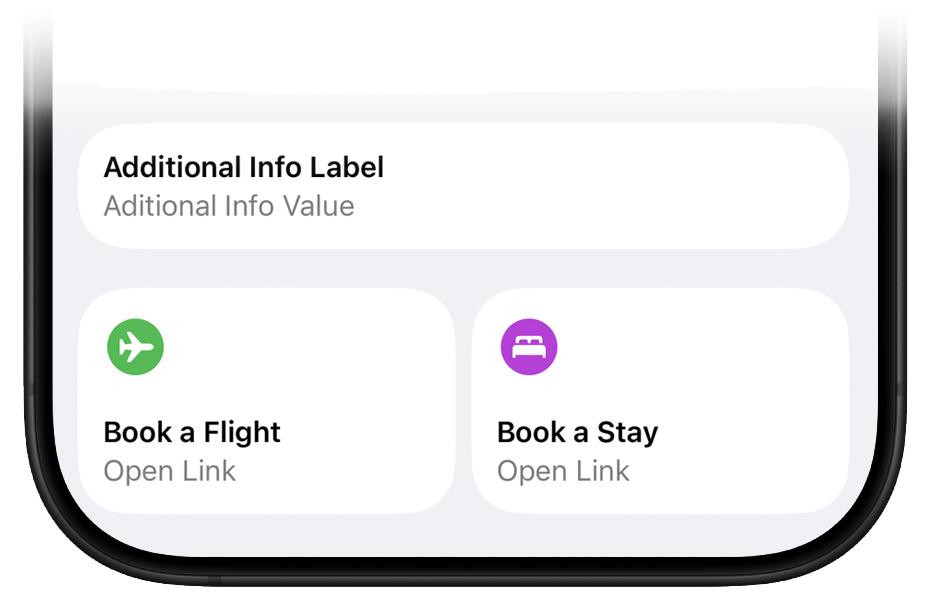
Additional Info is a supplementary content area that appears below the pass on iOS 27+. It displays as a badge-style card with extra information that doesn't fit on the main pass face.
Use Additional Info for:
- Supplementary details (terms, instructions, fine print)
- Secondary identifiers (membership tiers, account numbers)
- Status information (points balance, expiration)
- Tappable links (URLs, phone numbers, addresses)
Supported Pass Types
Additional Info fields are available on all basic pass types:
| Pass Type | Supported |
|---|---|
| Generic | ✓ |
| Loyalty | ✓ |
| Coupon | ✓ |
| Ticket | ✓ |
Additional Info Limitations
Unlike back fields, Additional Info fields do not support data detectors. Values are displayed as static text — URLs, phone numbers, and addresses are not tappable.
If you need interactive content (tappable links, phone numbers, or addresses), use back fields instead. Back fields support data detectors and appear when the user taps to flip the pass.
| Feature | Additional Info | Back Fields |
|---|---|---|
| Location | Below pass face | Back of pass |
| Tappable links | — | ✓ |
| Phone numbers | — | ✓ |
| Address detection | — | ✓ |
Best Use Cases for Additional Info
Since Additional Info is static text, use it for:
- Status labels — "Gold Member", "VIP Access"
- Short identifiers — Account numbers, confirmation codes
- Simple instructions — "Show at entrance"
- Expiration notices — "Valid until Dec 31, 2026"
Design Best Practices
Choose actions that match the pass purpose
A loyalty card benefits from addToBalance and membershipBenefits. An event ticket benefits from viewSchedule and place. Match actions to what users actually need in context.
Limit to meaningful actions
You can add up to 2 Featured Actions. Don't add actions just to fill space. Each action should serve a clear purpose.
Test on device
Actions that work in the PassNinja editor may behave differently on device. Always test passes on a real iOS 27+ device before deploying.
Keep URLs stable
Action URLs are baked into the pass. If you need to change destinations, use redirect URLs or update the pass via push.
Technical Implementation
PassNinja API
When creating or updating passes via the PassNinja API, you can set Featured Action URLs using the API field names defined in your template. Featured Actions are configured at the template level — you choose the action type in the PassNinja editor, then provide the URL/identifier per pass via the API.
Create a pass with Featured Actions:
curl -X POST https://api.passninja.com/v1/passes \
  -H "x-api-key: YOUR_API_KEY" \
  -H "x-account-id: aid_0x123" \
  -H "Content-Type: application/json" \
  -d '{
    "passType": "ptk_0x456",
    "pass": {
      "featured.action.0.url": "+15551234567",
      "featured.action.1.url": "I31A83EDD8F3EED6E"
    }
  }'
Update an existing pass:
curl -X PATCH https://api.passninja.com/v1/passes/ptk_0x456/abc123def456 \
  -H "x-api-key: YOUR_API_KEY" \
  -H "x-account-id: aid_0x123" \
  -H "Content-Type: application/json" \
  -d '{
    "pass": {
      "featured.action.0.url": "+15559876543"
    }
  }'
The API field names follow the pattern featured.action.{index}.url where index is 0 or 1.
Input format by action type
| Action Type | API Value Format | Example |
|---|---|---|
call | Phone number (E.164 format recommended) | +15551234567 |
place | Apple Maps Place ID (hex string) | I31A83EDD8F3EED6E |
| All others | HTTPS URL | https://example.com/book |
PassNinja automatically converts these values to the correct Apple format:
- Phone numbers are wrapped in
tel:URLs - Place IDs are set as
placeIdentifier(noturl) - All other values are passed as
url
Backward Compatibility
Featured Actions only appear on iOS 27 and later. On earlier iOS versions, the actions are silently ignored — the pass displays normally without them.
Design your pass to work well without Featured Actions. They should enhance the experience, not be required for basic functionality.
Summary
Featured Actions transform Apple Wallet passes from static credentials into interactive shortcuts. By choosing the right actions for your pass type and providing the correct input formats, you can create passes that feel native to iOS 27's enhanced Wallet experience.
| Key Point | Detail |
|---|---|
| Maximum actions | 2 per pass |
| Available action types | 14 types |
| Minimum iOS version | iOS 27 |
Input for call | Phone number (auto-converted to tel:) |
Input for place | Apple Maps Place ID (hex string) |
| Input for others | HTTPS Universal Link |
More articles in Platform Guides
Every design difference between Apple and Google Wallet traces back to one choice:
Apple Wallet Design System ExplainedApple Wallet is not a design tool. It is a policy engine.
Apple Wallet Layout AnatomyLayout in Apple Wallet is semantic, not spatial.
Designing Apple Wallet Passes: Text Alignment, Layout, and BehaviorYou cannot control how text looks in Apple Wallet. You can only control what it says.
Designing One Pass for Two PlatformsDesigning one pass for two platforms sounds efficient. It's actually one of the hardest problems ...
Google Wallet Design System ExplainedGoogle Wallet doesn't hold credentials. It connects systems.
Google Wallet Layout Behavior & Visual FlexibilityGoogle Wallet's flexibility is not an invitation to design freely. Flexibility demands defensive ...
iOS 27 Poster Generic Design GuideiOS 27 introduces **Poster Generic** — a visually immersive pass layout that transforms standard ...