
Getting Started with Klaviyo

Updated June 1, 2026
TL;DR: Connect PassNinja to Klaviyo to automate wallet pass delivery and track engagement.
- Sync pass events (created, installed, updated, uninstalled) to Klaviyo
- Enrich customer profiles with pass data and custom properties
- Add dynamic pass download links to emails and SMS
- Build automated flows triggered by pass activity
- Segment customers based on pass ownership and engagement
What You Can Do
With PassNinja + Klaviyo, you can:
- Automate pass delivery — Send wallet passes in welcome flows, post-purchase emails, and SMS campaigns
- Track engagement — See when customers install, use, or remove their passes
- Segment customers — Build segments based on pass ownership and activity
- Personalize messaging — Include dynamic pass download links in your emails and SMS
Prerequisites
Before you start, make sure you have:
| Requirement | Details |
|---|---|
| PassNinja account | With at least one pass template created |
| Klaviyo account | Manager, Admin, or Owner access |
| Pass template | Configured with fields for customer data (email, name, phone number, points, etc.) |
Step 1: Create a PassNinja Account
If you don't already have a PassNinja account:
- Go to passninja.com and click Sign Up
- Complete the registration process
- Create a pass template for Apple Wallet, Google Wallet, or both
Helpful links:
Step 2: Connect PassNinja to Klaviyo
Link your accounts using OAuth for secure communication between platforms.
- In PassNinja, go to Integrations → Klaviyo
- Click Connect
- Log in to Klaviyo and authorize access
- Select which pass templates to sync
- Click Save
Once connected, PassNinja will automatically sync pass events and customer data to Klaviyo.
For detailed instructions, see: How to Integrate Klaviyo with PassNinja
Step 3: Understand What Syncs to Klaviyo
Events
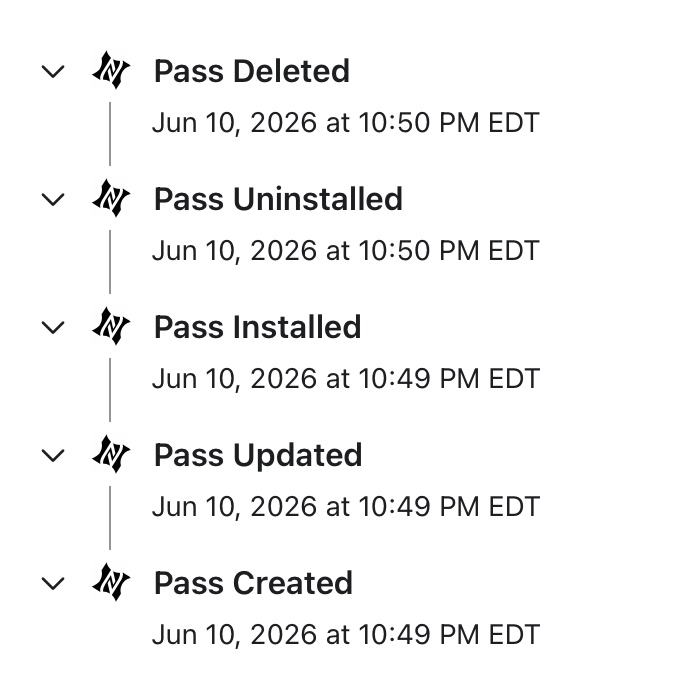
PassNinja automatically sends these events to Klaviyo:
| Event | When It Fires | Use It For |
|---|---|---|
| Pass Created | New pass is generated | Welcome flows, confirmation messages |
| Pass Installed | Customer adds pass to their wallet | Engagement confirmation, onboarding next steps |
| Pass Updated | Pass data changes (points, tier, etc.) | Status update notifications |
| Pass Uninstalled | Customer removes pass from wallet | Win-back campaigns, re-engagement |
| Pass Deleted | Pass is permanently deleted from PassNinja | Cleanup or archival workflows |
Profile Identity
Each pass creates a Klaviyo profile keyed by the pass serial number (external_id). If the pass includes an email or phone number, those are also set on the profile so the customer appears in Klaviyo's profile list with recognizable contact details.
| Profile Field | Value | Notes |
|---|---|---|
external_id | Pass serial number | Primary identity — always set |
email | Customer email (if on pass) | Used for email flows and profile display |
phone_number | Customer phone (if on pass) | E.164 format |
WalletPass Application Object
In addition to the profile, PassNinja writes a WalletPass record to Klaviyo's Custom Objects for every lifecycle event. This record is the authoritative source of pass state and is linked to the profile via external_id.
| Field | Description | Example |
|---|---|---|
serial_number | Unique pass identifier | fee4a257185906b92a |
pass_url | Pass download link | https://passninja.com/p/fee4a2... |
pass_type | Pass template ID | ptk_0x216 |
platform | Wallet platform | apple or google |
status | Current pass state | active, uninstalled, or deleted |
created_at | When the pass was issued | ISO 8601 timestamp |
updated_at | When this record last changed | ISO 8601 timestamp |
Step 4: Add Pass Links to Your Emails
Include wallet pass download links in your Klaviyo emails and SMS messages. The pass serial is stored as external_id on the Klaviyo profile, so use {{ person.external_id }} to build the pass URL.
Email Template Example
<a href="https://passninja.com/p/{{ person.external_id }}"
   style="background: #000; color: #fff; padding: 12px 24px; text-decoration: none; border-radius: 8px;">
   Add to Wallet
</a>
SMS Example
Your loyalty card is ready! Add it to your wallet: https://passninja.com/p/{{ person.external_id }}
Best Practices for Pass Links
- Place prominently — Don't bury the download link at the bottom
- Use clear CTAs — "Add to Wallet" or "Get Your Pass" works better than "Click here"
- Send at high-intent moments — Post-purchase, welcome series, after sign-up
Best Practices
Pass Distribution
| Channel | When to Use | Tips |
|---|---|---|
| Welcome email | New subscribers | Highest save rates happen early |
| Post-purchase | After first order | Customer is engaged and trusts you |
| SMS | Re-engagement | Direct, high open rates |
| Thank you page | Checkout complete | Capture high-intent moment |
| Account page | Logged-in customers | Persistent placement |
Pass Content
- Keep it minimal — 3-4 visible fields maximum
- Show value — Points balance, tier status, or available rewards
- Update regularly — Passes that change stay top-of-mind
- Include a barcode — Makes in-store use easy
- Add contact info to the back — Include the customer's phone number and/or email on the back of the pass unless they already appear on the front. This ensures Klaviyo can reliably match pass events to customer profiles
Measurement
Track these metrics to measure success:
| Metric | What It Tells You |
|---|---|
| Pass save rate | How many customers add passes |
| Install-to-uninstall ratio | Pass stickiness |
| Engagement by segment | Pass holders vs non-holders |
| Redemption rate | How often passes drive action |
Troubleshooting
Events not appearing in Klaviyo
- Check connection — Go to PassNinja → Integrations → Klaviyo and verify status
- Check pass has email or phone — Include at least one contact field on the pass so the profile is recognizable in Klaviyo
- Wait a few minutes — Events sync in near real-time but may have a slight delay
Pass link not working in email
- Check
external_idis set — Preview the email and confirm{{ person.external_id }}resolves to a serial number - Check URL format — Should be
https://passninja.com/p/{{ person.external_id }}
Support
Questions? We're here to help.
- Email: support@passninja.com
- Documentation: passninja.com/documentation
- Tutorials: passninja.com/tutorials